GoHighLevel Automation
How to Set Up GoHighLevel Missed Call Text-Back (Step-by-Step for 2026)
GoHighLevel missed call text-back is an automated SMS workflow that fires within 30 seconds of any unanswered inbound call. When a lead calls your business and nobody answers, they receive an immediate text message so the conversation stays alive before they call your competitor. It is one of the highest-ROI automations in GoHighLevel for any service business that relies on inbound calls.
This guide covers the full setup process, from creating the workflow to configuring business-hours logic to testing it with a real missed call.
Why Missed Call Text-Back Is the Most Important GHL Automation
Before getting into setup, it helps to understand why this matters so much. In service industries like healthcare, HVAC, plumbing, and real estate, a caller who hits voicemail usually moves on fast. The business that responds first often wins the lead.
Without automation, a missed call usually becomes a voicemail notification that nobody sees in time. With missed call text-back, the caller receives a reply within seconds, the conversation starts, and the lead enters your pipeline before attention disappears.
We have set up this automation for pain management clinics, HVAC companies, real estate agents, and local service businesses. In every case, it recovers leads that would otherwise have been lost entirely.
Before You Start — What You Need
First, make sure you have an active GoHighLevel account with a working phone number that is already receiving inbound calls. You can verify this inside Settings and then Phone Numbers.
Second, complete A2P 10DLC registration before activating any automated SMS for US numbers. Without approved registration, your text-back messages are likely to be filtered or blocked by carriers.
Third, know your business hours before you build the workflow because you will need them to set the daytime and after-hours message logic correctly.
Step-by-Step: Setting Up Missed Call Text-Back in GoHighLevel
Step 1 — Create a New Workflow
Log into GoHighLevel, open Automation and then Workflows, and create a new workflow from scratch. Give it a clear name like Missed Call Text-Back plus your business name so you can find it quickly later.
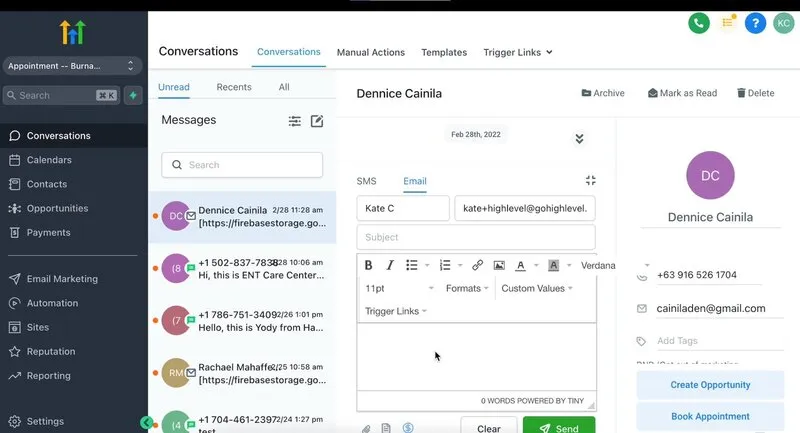
Step 2 — Set the Trigger to Missed Call
Add a new trigger and choose Missed Call. This trigger fires whenever an inbound call to your GoHighLevel number goes unanswered, whether the caller hangs up early or reaches voicemail without leaving a message.
The key point here is that the trigger works on your GoHighLevel number, not your personal phone. If your marketing still points leads to a personal mobile number, this automation will not help until that changes.
Step 3 — Add an If/Else Condition for Business Hours
Before sending an SMS, add an If/Else condition that checks the time of day and the business days you operate. This creates one branch for business hours and one branch for after hours.
The reason this matters is expectation-setting. A text that promises quick human follow-up at 2pm makes sense. The same message at 2am creates a promise you are unlikely to keep.
Step 4 — Add SMS Actions to Each Branch
On the business-hours branch, add a Send SMS action with a short message that acknowledges the missed call and asks one simple question. For example: Hi first name, this is business name. We just missed your call. How can we help?
On the after-hours branch, use a different message that sets realistic expectations. For example: Hi first name, thanks for calling business name. We are closed right now but will get back to you first thing in the morning. Feel free to reply here in the meantime.
Keep both messages short and clear. If possible, stay under one SMS segment and avoid trying to sell. The purpose is to start a conversation, not overload the lead.
Step 5 — Add a Team Notification
After the SMS action on each branch, add an internal notification or team email. That way your front desk or sales team knows a missed call happened and knows that an automated text already went out.
A good notification includes the contact name, phone number, time of the event, and the number they called so the team has enough context to step in when needed.
Step 6 — Set an Exit Condition
This is the step many setups skip. Add logic that ends the workflow if the lead has already responded, booked, or moved into a later pipeline stage. Without that, a lead can reply and still receive additional follow-up texts that no longer make sense.
If you want to add a second follow-up after a delay, make sure it only fires when there has been no response and no booking action.
Step 7 — Test With a Real Call
Before treating the workflow as finished, activate it and test with a real missed call from a number outside your CRM if possible. Let the call ring through, wait 30 seconds, and then confirm the SMS was sent and the conversation record was created correctly inside GoHighLevel.
If the workflow does not fire, check that the workflow is active, that your A2P registration is approved, and that the number being called is your actual GoHighLevel number.
SMS Templates That Actually Get Responses
The message matters almost as much as the trigger. For healthcare clinics, the tone should feel calm and helpful. For home services, it should feel fast and action-oriented. For real estate, it should open a simple next step without overwhelming the lead.
Across all industries, the rules stay the same: personalize with the lead’s first name, keep the copy brief, ask one clear question, and avoid turning the first text into a sales pitch.
Common Mistakes to Avoid
The first major mistake is trying to activate automated SMS before A2P registration is complete. If carriers have not approved your registration, your messages can be blocked no matter how good the workflow looks inside the builder.
The second mistake is sending the same message at 2am that you send at 2pm. Use business-hours logic to set expectations correctly so after-hours callers do not feel ignored or misled.
The third mistake is skipping exit conditions. If a lead already replied or booked, the workflow should stop. Continuing to send generic follow-up texts after that point feels sloppy.
The fourth mistake is advertising your personal number instead of your GoHighLevel number. The trigger only fires for calls to the number connected to GHL.
The fifth mistake is skipping real-world testing. A workflow can look perfect in the builder and still fail because of a small trigger setting, merge tag issue, or deliverability problem.
What Comes After Missed Call Text-Back?
Missed call text-back is usually the first GoHighLevel automation worth setting up, but it is only one part of a real lead management system. Once it works, the next layer is form-to-SMS follow-up, nurture sequences, booking confirmations and reminders, no-show recovery, and post-appointment review requests.
If you want that entire system built and tested for your business rather than piecing it together one workflow at a time, that is exactly what we do.
Frequently Asked Questions
How fast does GoHighLevel missed call text-back fire?
When correctly configured, it usually fires within 30 seconds of the missed call being logged inside GoHighLevel.
Do I need A2P registration to use missed call text-back?
Yes. For US automated SMS, A2P 10DLC registration is required. Without it, your messages are likely to be filtered or blocked.
Can I set different messages for business hours and after hours?
Yes. Use an If/Else condition in the workflow to check time and route callers to different SMS templates depending on when the missed call happened.
Will it work if the caller does not leave a voicemail?
Yes. The workflow is triggered by the missed call event itself, not by voicemail being left.
Can I use this for calls to my personal number?
No. The trigger works for calls to your GoHighLevel phone number, so that is the number you need to advertise if you want the automation to run.
About the Author
Gagan Deep is the founder of Flux Media Creations, a WordPress web design and GoHighLevel automation agency serving healthcare clinics, home service businesses, and real estate professionals across the United States, Canada, and the United Kingdom. He has built GoHighLevel automation systems for pain management clinics, vein treatment centers, orthopedic practices, and home service companies, with a focus on lead capture, missed call recovery, and appointment booking automation.
Related Posts
- How to Complete GoHighLevel A2P 10DLC Registration (Step-by-Step)
- WordPress vs GoHighLevel Websites: Which Does Your Business Need?
- 7 GoHighLevel Automations Every Healthcare Clinic Should Have in 2026